Seamless Wi-Fi with Mesh Backhaul and Roaming
Covering a building or a yard with Wi-Fi usually means several access points sharing one network name, so a laptop or a phone keeps working as it moves between them. Two problems show up quickly:
- Getting the network to every AP. Pulling Ethernet to each AP is the reliable way, but it is not always possible. Where you cannot run a cable, a wireless backhaul has to carry the traffic instead.
- Moving clients between APs without dropping them. A client that has to fully re-authenticate every time it changes AP will stutter on voice calls and long downloads. Fast roaming closes that gap.
Infix v26.06 adds both pieces: 802.11s mesh for the wireless backhaul, and 802.11r/k/v for fast roaming. Basic access point support arrived in v26.01; this release is what ties several APs into one network. The rest of this post builds a three-node network with them and explains why each part is configured the way it is. At the end we look at the automated test that verifies the setup.
The Wi-Fi documentation has the reference material behind each setting: bands, channels, security modes, and the full list of roaming knobs. This post is the worked example.
The design
Three nodes cover the area. Each node does two jobs at once, and that is why each one needs two radios:
- radio0 (mesh backhaul). All three nodes join one 802.11s mesh on 5 GHz. The mesh carries traffic between the nodes, so only one node needs a wire back to the rest of the LAN. The others reach it over the air.
- radio1 (client access). Each node runs an access point on 2.4 GHz with the same SSID and the same passphrase. This is the network clients actually see and roam across.
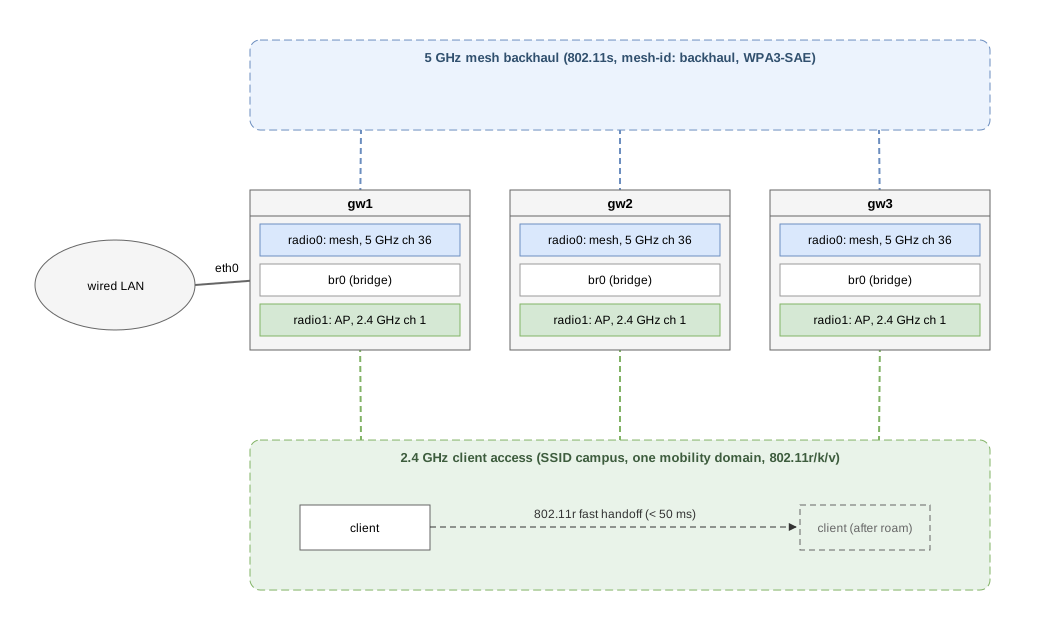 Three nodes bridge a 5 GHz mesh backhaul and a 2.4 GHz roaming AP; only gw1 has a wire.
Keeping backhaul and access on different bands matters. If the mesh and the AP shared one radio they would also share one channel and take turns on the air, and every client frame would compete with backhaul traffic. Splitting them, 5 GHz for the mesh and 2.4 GHz for clients, lets both run at full tilt, and the wider 5 GHz channels suit the backhaul where the throughput adds up.
A bridge (br0) on each node ties the mesh interface, the AP interface,
and (on the wired node) the uplink into one layer-2 segment. With mesh
forwarding on, the mesh acts as a transparent backhaul: a client attached
to gw3’s AP sits on the same LAN as something plugged into gw1, and the
frames cross the mesh without anyone configuring a route.
A mesh point and an access point cannot share a radio; Infix rejects that combination. Plan on two radios per node.
Building it
The three nodes are configured almost identically. Only gw1 carries the wired uplink; gw2 and gw3 are reachable purely over the mesh. The examples below show gw1 in full, then the one difference for the others.
1. The shared secrets
Every node needs two keystore entries: one passphrase for the mesh (all mesh links use WPA3-SAE) and one for the client AP. Use the same two secrets on all three nodes.
1
2
3
4
5
6
7
8
9
10
11
12
13
admin@gw1:/> configure
admin@gw1:/config/> edit keystore symmetric-key mesh-secret
admin@gw1:/config/keystore/.../mesh-secret/> set key-format passphrase-key-format
admin@gw1:/config/keystore/.../mesh-secret/> change cleartext-symmetric-key
Passphrase: ************
Retype passphrase: ************
admin@gw1:/config/keystore/.../mesh-secret/> end
admin@gw1:/config/> edit keystore symmetric-key wifi-secret
admin@gw1:/config/keystore/.../wifi-secret/> set key-format passphrase-key-format
admin@gw1:/config/keystore/.../wifi-secret/> change cleartext-symmetric-key
Passphrase: ************
Retype passphrase: ************
admin@gw1:/config/keystore/.../wifi-secret/> leave
2. The radios
radio0 carries the mesh, so it needs a band, a channel, and a real country code. The mesh refuses to start without them. radio1 carries the AP on 2.4 GHz.
1
2
3
4
5
6
7
8
9
10
11
admin@gw1:/> configure
admin@gw1:/config/> edit hardware component radio0 wifi-radio
admin@gw1:/config/hardware/component/radio0/wifi-radio/> set country-code SE
admin@gw1:/config/hardware/component/radio0/wifi-radio/> set band 5GHz
admin@gw1:/config/hardware/component/radio0/wifi-radio/> set channel 36
admin@gw1:/config/hardware/component/radio0/wifi-radio/> end
admin@gw1:/config/> edit hardware component radio1 wifi-radio
admin@gw1:/config/hardware/component/radio1/wifi-radio/> set country-code SE
admin@gw1:/config/hardware/component/radio1/wifi-radio/> set band 2.4GHz
admin@gw1:/config/hardware/component/radio1/wifi-radio/> set channel 1
admin@gw1:/config/hardware/component/radio1/wifi-radio/> leave
All three nodes use the same mesh channel (36), since mesh peers must meet on one channel, and the same AP channel (1), so a roaming client does not have to change channel as it moves.
3. The mesh interface
wifi0 rides on radio0 as the 802.11s mesh point. The mesh-id is the
mesh equivalent of an SSID: every node that should join uses the same one.
Leaving forwarding at its default (true) is what lets the mesh be
bridged.
1
2
3
4
5
admin@gw1:/config/> edit interface wifi0
admin@gw1:/config/interface/wifi0/> set wifi radio radio0
admin@gw1:/config/interface/wifi0/> set wifi mesh-point mesh-id backhaul
admin@gw1:/config/interface/wifi0/> set wifi mesh-point security secret mesh-secret
admin@gw1:/config/interface/wifi0/> leave
4. The access point, with roaming
wifi1 rides on radio1 as the client-facing AP. The roaming settings are
the point of this step. All three APs must agree on the SSID, the
passphrase, and the mobility domain. That trio is what tells a client the
three APs are one roaming network rather than three unrelated ones.
Using mobility-domain hash derives the domain from the SSID, so the three
APs land on the same domain without anyone copying a hex value around.
1
2
3
4
5
6
7
8
9
10
admin@gw1:/config/> edit interface wifi1
admin@gw1:/config/interface/wifi1/> set wifi radio radio1
admin@gw1:/config/interface/wifi1/> set wifi access-point ssid campus
admin@gw1:/config/interface/wifi1/> set wifi access-point security mode wpa2-wpa3-personal
admin@gw1:/config/interface/wifi1/> set wifi access-point security secret wifi-secret
admin@gw1:/config/interface/wifi1/> set wifi access-point roaming dot11r
admin@gw1:/config/interface/wifi1/> set wifi access-point roaming dot11r mobility-domain hash
admin@gw1:/config/interface/wifi1/> set wifi access-point roaming dot11k
admin@gw1:/config/interface/wifi1/> set wifi access-point roaming dot11v
admin@gw1:/config/interface/wifi1/> leave
The three roaming features do different jobs:
- dot11r (Fast BSS Transition) is the one that makes the handoff quick. It pre-shares the keys so a roaming client skips the full WPA handshake, cutting the gap from roughly a second to under 50 ms.
- dot11k (Radio Resource Management) hands the client a neighbour list, so it already knows which APs to look at instead of scanning blindly.
- dot11v (BSS Transition Management) lets an AP nudge a client toward a better one.
5. The bridge
br0 joins the mesh and the AP into one segment. On gw1 the wired uplink
joins too, which is what gives the other nodes a path to the rest of the
LAN.
1
2
3
4
5
admin@gw1:/config/> set interface br0
admin@gw1:/config/> set interface wifi0 bridge-port bridge br0
admin@gw1:/config/> set interface wifi1 bridge-port bridge br0
admin@gw1:/config/> set interface eth0 bridge-port bridge br0
admin@gw1:/config/> leave
gw2 and gw3 are identical except they have no wired uplink, so drop the
eth0 line. Their br0 carries only wifi0 (mesh) and wifi1 (AP), and
they reach the LAN over the mesh.
Checking it works
Did the mesh form? Each node should list the other two as peers:
1
2
3
4
5
admin@gw1:/> show interface wifi0
...
mode               : mesh-point
mesh id            : backhaul
peers              : 2
Is a client associated, and where? The AP lists the clients on it. As a client roams, it disappears from one node’s list and shows up on another:
1
2
3
4
5
admin@gw2:/> show interface wifi1
...
mode               : access-point
ssid               : campus
stations           : 1
Does traffic actually cross the mesh? Attach a client to gw3’s AP (the node with no wire) and reach something on the wired LAN behind gw1. If that works, the mesh is carrying the traffic.
How we keep it working
A worked example that only ever ran by hand tends to rot. This one has an automated counterpart in the Infix regression test suite:
1
test/case/interfaces/wifi_mesh_roaming/
It brings up three nodes exactly as above (mesh backhaul on radio0, a roaming AP on radio1, all bridged) plus a fourth node as the client. It then checks the claims this post makes:
- the three nodes form a mesh (each sees its peers);
- a client associates to the
campusSSID; - traffic reaches the client across the mesh backhaul;
- when the AP the client is on goes away, the client roams to another node carrying the same SSID and mobility domain, and traffic recovers.
In simulation every radio hears every other at the same strength, so there is no signal gradient to drift a client from one AP to the next. The test forces the move instead. It takes down the AP the client is on and confirms the client lands on another one and keeps talking. That is a harsher check than a gentle signal-based drift: it proves the second AP accepts the client and the backhaul re-converges, with no human in the loop.
The virtual radios are mac80211_hwsim, and a small relay, wifimedium,
carries frames between the separate guests so they can hear each other.
On real hardware none of that exists. The radios use the air, and the
same configuration applies unchanged.