Time-Sensitive Networking
Priorities decide who goes first on a busy port, see Quality of Service. Some traffic needs more than that: a stream that must get its bandwidth whatever else is sent, or a control loop that must hear from its sensor every millisecond and cannot wait behind a frame that happened to start just before. Time-Sensitive Networking (TSN) is the set of IEEE 802.1 standards for such traffic. Three of them work together on a port:
| Building block | Standard | What it does |
|---|---|---|
| Synchronised time | IEEE 802.1AS | Gives every switch and station the same clock, see PTP |
| Credit-based shaper | IEEE 802.1Qav | Holds a traffic class to a reserved rate |
| Time-aware shaper | IEEE 802.1Qbv | Opens each traffic class's gate by a repeating timetable |
Table 1: The building blocks of TSN on a port.
The two shapers are available on products built with TSN support.
Where they are not, the cbsa and gate-parameter-table settings do
not exist. Whether a port's switch hardware runs them is listed in its
qos capabilities, see Hardware Offload.
The shapers act on traffic classes, so the port's classification and
class table come first, see Quality of Service.
Setting Up a Scheduled Port
One port, e2, carries three kinds of traffic toward a machine cell:
control traffic that must arrive within a fixed part of every
millisecond, a video stream that needs 50 Mbps, and everything else.
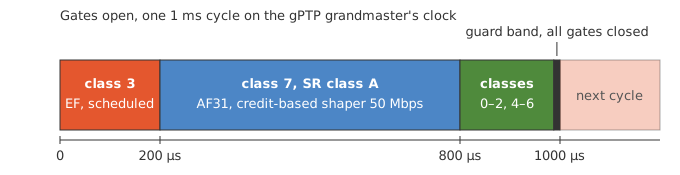
Figure 1: The timetable of the example, one 1 ms cycle.
The setup takes four steps, each with its own page in the WebUI and a few lines in the CLI. In the WebUI every step changes the candidate configuration, and Apply at the bottom of the page activates them together.
| Step | WebUI page |
|---|---|
| Synchronise the clocks | Configure > PTP |
| Reserve bandwidth | Configure > TSN, Reserve bandwidth |
| Schedule the port | Configure > TSN, Time schedule |
| Check what the port runs | Status > PTP and Status > QoS |
Table 2: The steps of the example and where each is done in the WebUI.
Synchronise the Clocks
A timetable only means something when every device counts the cycle from the same clock. The device is the gPTP grandmaster on the port, and the stations follow it.
In the WebUI, open Configure > PTP and select Add instance. Choose
the ieee802-dot1as profile and tick e2. Then open the instance and
set Priority 1 to 1, the lowest in the network becomes grandmaster.
In the CLI:
admin@example:/config/> edit ptp instance 0
admin@example:/config/ptp/instance/0/> set default-ds profile ieee802-dot1as
admin@example:/config/ptp/instance/0/> set default-ds domain-number 0
admin@example:/config/ptp/instance/0/> set default-ds priority1 1
admin@example:/config/ptp/instance/0/> edit port 1
admin@example:/config/ptp/…/0/port/1/> set underlying-interface e2
admin@example:/config/ptp/…/0/port/1/> leave
See PTP for the roles a device can have and the settings of each profile.
Reserve Bandwidth
The video stream gets a traffic class of its own with a reservation
of 50 Mbps. The ieee-sr preset is the layout IEEE 802.1Q recommends
for a port with reserved streams: the video stream, priority 3, goes
to class 7, and the control traffic, priority 5, to class 3.
In the WebUI, open Configure > TSN and select Reserve bandwidth.
Tick e2, choose traffic class 7, enter 50 Mbps and leave the stream
reservation class table ticked. This sets all three things the CLI
example below does. On a port that uses a QoS profile the class
settings change in the profile, for all its ports, and the page says
so. A class can only be reserved when the classes above it are, so
start with the highest.
In the CLI:
admin@example:/config/> edit interface e2
admin@example:/config/interface/e2/> set qos egress traffic-class-table preset ieee-sr
admin@example:/config/interface/e2/> set qos egress traffic-class 7 algorithm credit-based-shaper
admin@example:/config/interface/e2/> set cbsa-parameter-table 7 admin-idle-slope 50M
Schedule the Port
Last the timetable: 200 µs for class 3, 600 µs for class 7, the rest of the cycle for the other classes, and a guard band of 12.4 µs with all gates closed before the cycle starts over.
In the WebUI, select Time schedule on Configure > TSN. Tick e2,
set the cycle to 1000 µs, the traffic class to 3 and its window to
200 µs:
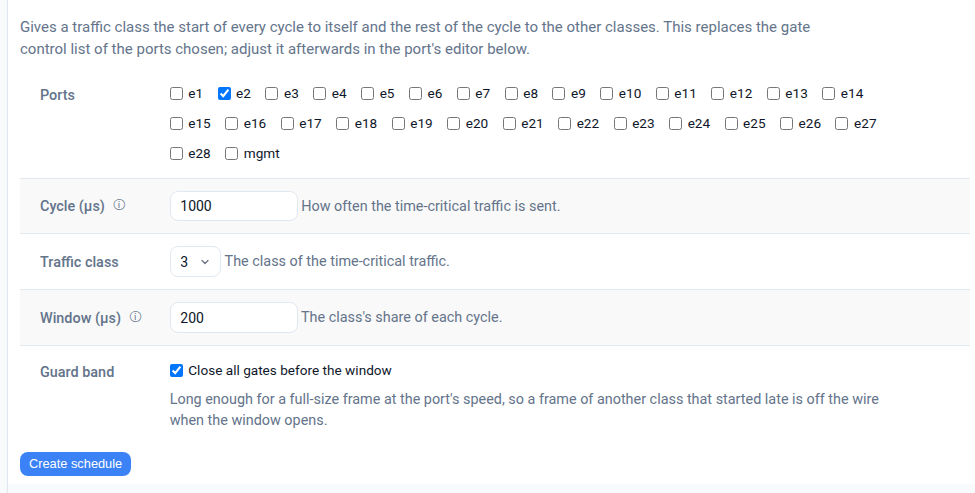
Figure 2: Time schedule, filled in for the control traffic of the example.
Create schedule writes a gate control list with three entries: the window for class 3, the rest of the cycle for the other classes, and the guard band. It then opens the port's schedule editor, where the list can be changed. The editor draws one cycle with a row per traffic class, and says below it whether the entries fill the cycle. To give the video stream its 600 µs, change entry 1 to class 7 alone for 600 µs and entry 2 to the remaining classes for 187.6 µs, then select Guard band to add the last entry:
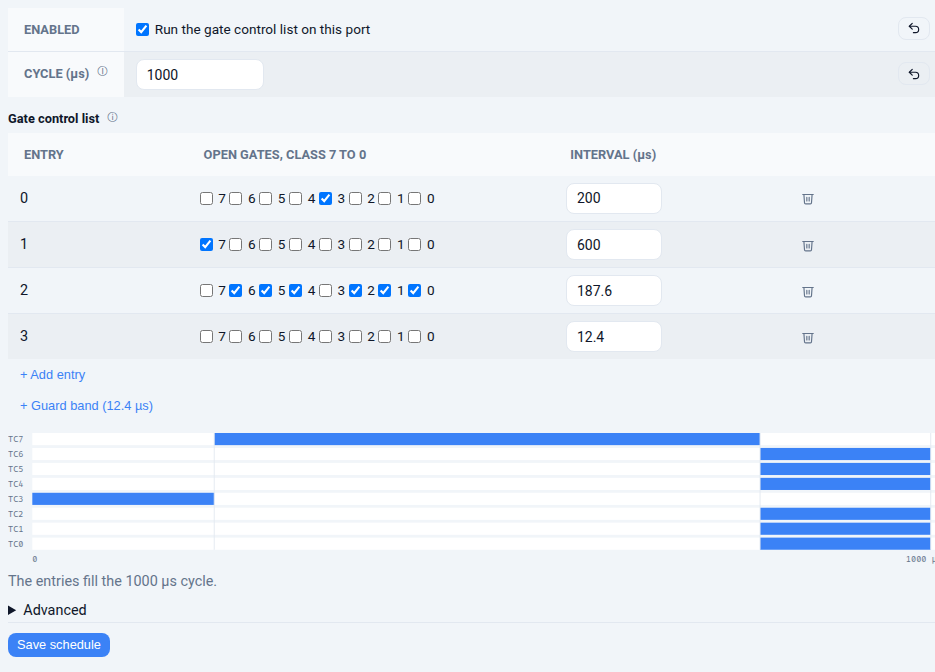
Figure 3: The schedule of the example in the editor.
The guard band is as long as a full-size frame takes at the port's link speed. A port without link gets it for the highest speed the port supports, so a device can be set up before it is connected.
In the CLI:
admin@example:/config/interface/e2/> edit gate-parameter-table
admin@example:/config/interface/…/gate-parameter-table/> set gate-enabled true
admin@example:/config/interface/…/gate-parameter-table/> set admin-cycle-time numerator 1 denominator 1000
admin@example:/config/interface/…/gate-parameter-table/> set gate-control-entry 0 operation-name set-gate-states gate-states-value 8 time-interval-value 200000
admin@example:/config/interface/…/gate-parameter-table/> set gate-control-entry 1 operation-name set-gate-states gate-states-value 128 time-interval-value 600000
admin@example:/config/interface/…/gate-parameter-table/> set gate-control-entry 2 operation-name set-gate-states gate-states-value 119 time-interval-value 187600
admin@example:/config/interface/…/gate-parameter-table/> set gate-control-entry 3 operation-name set-gate-states gate-states-value 0 time-interval-value 12400
admin@example:/config/interface/…/gate-parameter-table/> leave
Check What the Port Runs
In the WebUI, Status > PTP shows whether the device is grandmaster or which clock it follows, and how far off it is. Status > QoS lists the reservations and the gate schedule every port runs, and the page of an interface has the running list entry by entry.
In the CLI, show interface lists what the port runs: the
reservation of each shaped class, and the gate schedule with the
traffic classes each entry opens.
admin@example:/> show interface e2
…
Quality of Service
trust              : pcp
default priority   : 0
hardware offload   : classification, transmission-selection, time-aware-shaper, credit-based-shaper
available offload  : remarking, egress-shaper

CLASS  PRIORITIES  ALGORITHM            SHARE  RESERVED
    7  3           credit-based-shaper          50 Mbps
    6  2           strict-priority
    5  7           strict-priority
    4  6           strict-priority
    3  5           strict-priority
    2  4           strict-priority
    1  0           strict-priority
    0  1           strict-priority

gate schedule      : running
cycle time         : 1 ms
base time          : 0.000000000 s

ENTRY  OPEN CLASSES  INTERVAL
    0  3               200 µs
    1  7               600 µs
    2  0-2,4-6       187.6 µs
    3  none           12.4 µs
The port where the traffic enters decides which frames get priority 5 and 3, e.g. by trusting the DSCP, see Ingress Classification. The sections below describe each shaper, and Measuring the Result how to check the timing on the wire.
Credit-Based Shaper
A traffic class can reserve bandwidth with the IEEE 802.1Qav
credit-based shaper. The shaper runs in the switch fabric where the
hardware has one, see Hardware Offload; elsewhere
the kernel runs it for the traffic it forwards itself. Turning it on
takes two settings in two places, as the standard splits them: the
class's algorithm under qos egress, and the reservation as
admin-idle-slope, in bits per second, here 20M for 20000000, in
cbsa-parameter-table beside qos on the interface, i.e.
/interfaces/interface[name='e1']/cbsa/cbsa-parameter-table[traffic-class='7']/.
One without the other is rejected.
Reserve 20 Mbps for class 7 on a port:
admin@example:/config/> edit interface e1
admin@example:/config/interface/e1/> set qos egress traffic-class 7 algorithm credit-based-shaper
admin@example:/config/interface/e1/> set cbsa-parameter-table 7 admin-idle-slope 20M
admin@example:/config/interface/e1/> leave
The class sends at most its reservation on average, and credit earned
while it waits lets it burst by about one frame. Shaped classes must
be the highest-numbered ones, above the strict classes, as IEEE
802.1Q-2022 34.5 lays a port out, and the reservation may not exceed
the link rate. A port with an egress-shaper cannot shape per class.
The reservation in force is reported as oper-idle-slope.
Time-Aware Shaper
A port can run the IEEE 802.1Qbv time-aware shaper: a repeating cycle in which each traffic class's gate is open only in defined windows, so a reserved window stays quiet whatever else is queued. The gates run in the switch fabric where the hardware has one, see Hardware Offload, and the schedule needs synchronised time across the network, see PTP.
The gate control list lives in gate-parameter-table beside qos on
the interface, /interfaces/interface[name='e1']/gate-parameter-table/,
one gate-control-entry per step. Each entry opens the
gates in gate-states-value, a bit per traffic class with bit 0 for
class 0, for time-interval-value nanoseconds. admin-cycle-time is
a fraction of a second, unset it is the sum of the entries, and
admin-base-time anchors the cycle to the clock. A 100 µs cycle with
class 7 alone for 20 µs, classes 7 and 5 for 20 µs, and the rest for
60 µs:
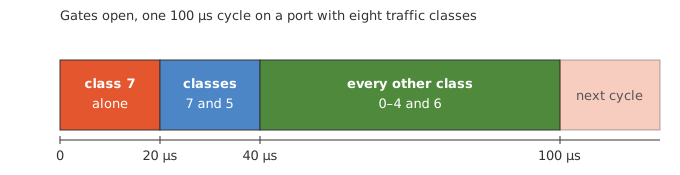
Figure 4: The gate control list of the example.
The mask of an entry is the sum of the values of the classes it opens:
| Class | 7 | 6 | 5 | 4 | 3 | 2 | 1 | 0 | gate-states-value |
|---|---|---|---|---|---|---|---|---|---|
| Value | 128 | 64 | 32 | 16 | 8 | 4 | 2 | 1 | |
| Entry 0, class 7 alone | 128 | 128 | |||||||
| Entry 1, classes 7 and 5 | 128 | 32 | 160 | ||||||
| Entry 2, the rest | 64 | 16 | 8 | 4 | 2 | 1 | 95 |
Table 3: The gate masks of the example, 255 opens every gate and 0 closes them all.
admin@example:/config/> edit interface e1 gate-parameter-table
admin@example:/config/interface/…/gate-parameter-table/> set gate-enabled true
admin@example:/config/interface/…/gate-parameter-table/> set admin-cycle-time numerator 1 denominator 10000
admin@example:/config/interface/…/gate-parameter-table/> set admin-base-time seconds 0 nanoseconds 200
admin@example:/config/interface/…/gate-parameter-table/> set gate-control-entry 0 operation-name set-gate-states gate-states-value 128 time-interval-value 20000
admin@example:/config/interface/…/gate-parameter-table/> set gate-control-entry 1 operation-name set-gate-states gate-states-value 160 time-interval-value 20000
admin@example:/config/interface/…/gate-parameter-table/> set gate-control-entry 2 operation-name set-gate-states gate-states-value 95 time-interval-value 60000
admin@example:/config/interface/…/gate-parameter-table/> leave
The list applies at commit. Gated classes are served strictly, so a
gated port rejects weighted classes, and the schedule takes the whole
port, so it rejects an egress-shaper as well. A shaped class under gates
keeps its reservation: credit is earned only while its gate is open,
and the shaper is set up with the slope raised by the cycle over the
class's open time, as 802.1Q-2022 8.6.8.2 specifies. A shaped class
whose gate never opens is rejected. The list, cycle and base time the
port runs are reported as oper-control-list, oper-cycle-time and
oper-base-time.
A frame that cannot finish before its gate closes waits for the next opening, as 802.1Q-2022 8.6.8.4 requires, so no window overruns into the next. A switch does this by closing each gate a guard band early, long enough for the largest frame.
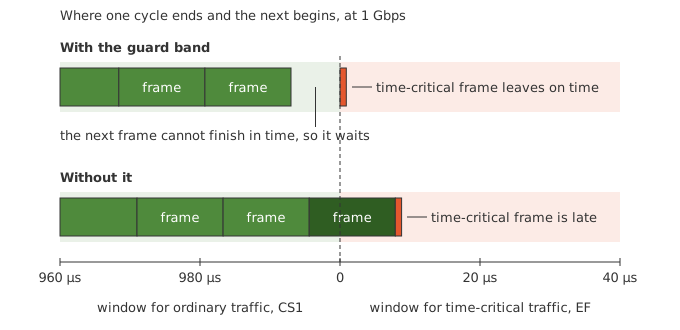
Figure 5: A full-size frame at the end of a window, with and without the guard band.
queue-max-sdu-table sets the
largest frame of a class, in bytes counted like the MTU. Longer frames
of the class are dropped, and a switch that sizes its guard bands from
it leaves more of a short window to a class of small frames. For
class 7, carrying 200-byte frames:
admin@example:/config/> edit interface e1 gate-parameter-table
admin@example:/config/interface/…/gate-parameter-table/> set queue-max-sdu-table 7 queue-max-sdu 200
admin@example:/config/interface/…/gate-parameter-table/> leave
A schedule meant to hold also on bridges that let a frame overrun its window adds a guard band of its own: an entry with all gates closed before the protected window, as long as the largest frame takes on the wire. That is 12.4 µs at 1 Gbps for a 1500-byte frame with two VLAN tags, and 123.7 µs at 100 Mbps. A switch that holds frames back itself may use a longer band than the list does, see the limits of each family under Hardware Offload.
Measuring the Result
show interface and the operational datastore show the list, cycle
and base time a port runs, and the reservation of each shaped class.
That shows what is configured. Whether frames
leave when the timetable says takes a measurement, and the system
comes with a tool for it: ptping sends probes that are timestamped
in hardware, both when they leave the sender and when they reach the
receiver. With all clocks synchronised, each probe shows how long it
took and where in the cycle it arrived.
The probes are PTP messages over UDP, in a PTP domain of their own, 254 unless another is given. The clocks must be synchronised with PTP over Layer 2, as gPTP is. Start a sink on the station at the far end:
admin@listener:~$ sudo ptping sink
Check from the sending station that the sink answers and that both ends can timestamp:
admin@talker:~$ sudo ptping probe 192.168.20.2
Then send probes marked EF, DSCP 46, against a 1 ms cycle. With an
interval of 1.003 ms between them, the probes reach the port under
test a little later in the cycle each time, and after 333 they have
covered all of it. With --observe the probes are sent throughout
the cycle, and stat prints a running summary with one row for those
that left inside the window given, here the first 200 µs, and one for
those outside it:
admin@talker:~$ sudo ptping stat --cycle 1ms --window 0+200us --observe -r 1.003ms -c 999 -n control -d 46 192.168.20.2
A probe that reaches a closed gate waits for it, so its latency grows
by the time left until the gate opens. record saves every probe as
a line of CSV instead, with the time it left and arrived and where in
the cycle that was, for a closer look.